
Off-Campus Access
Connect From Anywhere
Many of the Libraries’ databases, electronic journals, e-books, and other resources are available online, 24/7! However, most of them can only be accessed from off-campus by current UW students, faculty, and staff and current Cascadia users.
You must log in with your eligible UW NetID
- Sponsored and Shared NetIDs are not eligible even if provisioned
- See specifics for eligibility based on affiliation
Connect through Husky OnNet OR the Libraries off-campus proxy service
Ask Us!
Get help from librarians by email, phone, 24/7 chat, or make an appointment with a subject expert
Off-Campus Access to Online Library Resources
Off-campus access to licensed online resources is possible through two different mechanisms: the Libraries Proxy Service and the UW’s Husky OnNet VPN Service.
Libraries Proxy Service
The Libraries online resources are usually licensed so that computers on the UW networks have access. The proxy service allows your web browser to be seen as being on the campus network regardless of where you are physically. You must authenticate using your UW NetID to use this service.
There are two ways of using the proxy service: by logging in while on the Libraries website or by logging in from a website (such as from a journal’s webpage) using the proxy bookmarklet.
Website Proxy Service
If you are starting from the Libraries website, simply click on the resource you want to view and you should be automatically prompted for your UW NetID and password when it is needed.
Proxy Service Tips
- If you log in successfully, you will be redirected to your resource and will see offcampus.lib.washington.edu in the address bar.
- If you no longer see offcampus.lib.washington.edu in the address bar, go back to the Libraries website to reconnect to the resource or use the off-campus proxy bookmarklet (see below) to reconnect.
- If you have a citation manager tool like Zotero installed on your computer, note that the redirection setting could cause problems if you are on campus – see Known Issues.
Browser Proxy Bookmarklet
The bookmarklet is a snippet of code added to your browser’s bookmarks that lets you log in with your UW NetID from any webpage to access the proxy service. The bookmarklet is compatible with browsers that allow javascript.
Installation Instructions
In Chrome, Edge or Safari, click, hold, and drag the following link to your browser’s Favorites Toolbar or a bookmark folder. In Firefox, right-click the link and select ‘Bookmark link…’:
UW Libraries Proxy Bookmarklet
OR
Create a bookmark manually on a touch device or other browser. Be sure the URL includes the following code instead of a web address:
javascript:void((function(){location.href='https://offcampus.lib.washington.edu/login?qurl='+encodeURIComponent(location.href);})());
You might see a security alert that the “favorite may not be safe,” although it is. Click “yes” to continue.
Using the Proxy Bookmarklet
- Once you have installed the proxy bookmarklet, open the resource you want to access
- Click on the proxy bookmarklet in your browser’s toolbar, and you will be prompted for your UW NetID and password. You are successfully logged in if you see offcampus.lib.washington.edu within the address bar.
Proxy Bookmarklet Tips
- If you no longer see offcampus.lib.washington.edu within the address bar, click on the off-campus proxy bookmarklet again to reconnect.
- Licensed content is provided by a number of vendors and some content may not be accessible directly from the source you are using. In this case you will need to start from the Libraries website to see if we have access to this resource.
- Older versions of Microsoft Edge (prior to Windows 10 v1703) did not allow you to edit the URL of bookmarks; newer versions do allow you to edit the URLs; please update your browser to the latest version.
- If you have a citation manager tool like Zotero installed on your computer, note that the redirection setting could cause problems if you are on campus – see Known Issues.
Limits On Content Downloading
The Libraries off-campus proxy service restricts content downloading to 100Mb of content during any 15 minute interval. Be careful when using reference management software such as Zotero or Endnote, so as to not download too much content at one time.
If your session does exceed 100Mb of content downloads over a 15 minute interval, it will be temporarily suspended for a period of two hours.
Husky OnNet VPN Service
Husky OnNet
Husky OnNet (Big-IP Edge) is a virtual private network (VPN) software application offered by UW-IT. The VPN provides a secure temporary connection to the UW network from off-campus locations and can be used instead of the Libraries off-campus proxy service for connecting to resources.
You MUST configure the VPN for All Traffic to connect to UW Libraries Resources!
Install Husky OnNet
Follow the instructions to Download and Use Husky OnNet.
Configure Husky OnNet for Accessing Libraries Resources
In order to access Libraries online licensed resources, Husky OnNet must be configured to All Internet Traffic.
** There may be performance or privacy considerations when using Husky OnNet configured to route “All Internet Traffic” through the University of Washington network. Use of Husky OnNet should be limited to University-related activity, as it is subject to the UW Appropriate Use Policy and its own Terms and Conditions. Be sure to disconnect when you are done.
In Windows:
1. Make sure the server setting says All Internet Traffic. If it does not, click Change Server at the bottom left (for Windows)
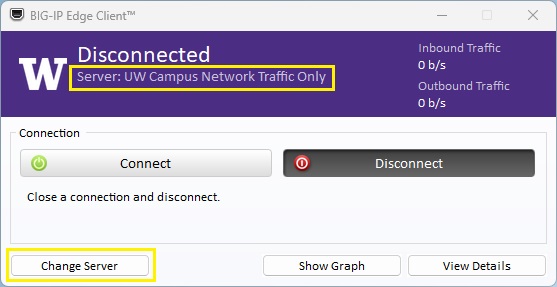
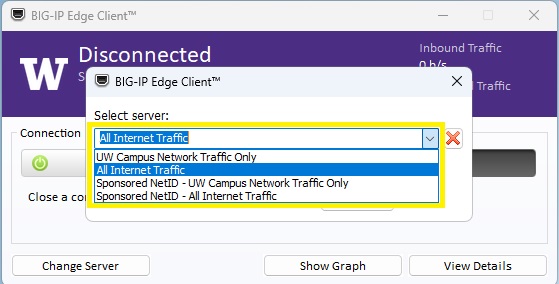
2. In the pop-up window, select All Internet Traffic
3. Click Next
4. Click the Connect button
5. If you are connected correctly it will say Connected and Server: All Internet Traffic
From this point, you can browse, search, and connect to any UW subscription library resource as if you are on campus and without having to use the Libraries off-campus proxy service or the proxy bookmarklet.
If you have Husky OnNet turned on and are connected with UW Campus Network Traffic Only, you will not be able to use UW subscription library resources.
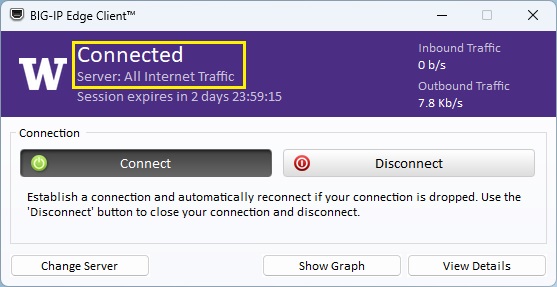
From this point, you can browse, search, and connect to any UW subscription library resource as if you are on campus and without using the Libraries off-campus proxy.
Configuring Husky OnNet to Access Library Resources
If you have Husky OnNet turned on and are connected with UW Campus Network Traffic Only, you will not be able to use UW subscription library resources.
Husky OnNet Tips
China and other countries may have strict laws and policies regarding VPN use – see FAQ
Cascadia users cannot use Husky OnNet but can use a browser from Cascadia’s Remote Desktop (“Views”) Access
Frequently Asked Questions
Check to make sure the VPN server is set to All Internet Traffic. See the Husky OnNet configuration for details.
Only current UW faculty, staff, and students are eligible to access the off-campus proxy service. Users must have cookies enabled on their browser to log in with their UW NetID. NOTE: Sponsored and Shared NetIDs are not eligible even if provisioned.
Once you have successfully logged in, use the browser “Forward” and “Back” buttons whenever possible, otherwise you may “fall out” of your session. If you do not see offcampus.lib.washington.edu in the address bar, please reconnect to the resource via the Libraries website or the proxy bookmarklet.
Remove the offcampus.lib.washington.edu from the URL
Add https://offcampus.lib.washington.edu/login?url= to the resource URL.
For example:
https://offcampus.lib.washington.edu/login?url=https://www.umi.com/pqdauto
See info about UW NetIDs. Still have questions? Ask us! Give us a brief description of the problem, including any error messages, and be sure to let us know your NetID (we don’t need your password).
Sometimes businesses and medical institutions have special firewall software in place to protect their network and/or to exclude certain internet locations (filtering). Talk to your local IT staff about the issue.
Not all resources are accessible using the proxy service. UW Libraries may not subscribe to the resource or we may have access through another source. Try searching for the item in UW Libraries Search to determine access.
Consider installing LibKey Nomad to your browser. The LibKey Nomad browser extension quickly guides you from an item found on the web to full-text content available through UW Libraries.